5 min readĐọc bằng tiếng Việt
From sign-up to the first run
How to set up automated testing for a web app in VibeQA: sign in with a link, create a project, let Tokay draft suites, review them and start a first run.
This is how to set up automated testing for a web app in VibeQA, from an empty account to a first real run, step by step, with the labels you will see on screen. You need a work email, a web app reachable from the internet (a staging or preview URL is best), and ideally a spec or two for Tokay to read.
1. Sign in with a link
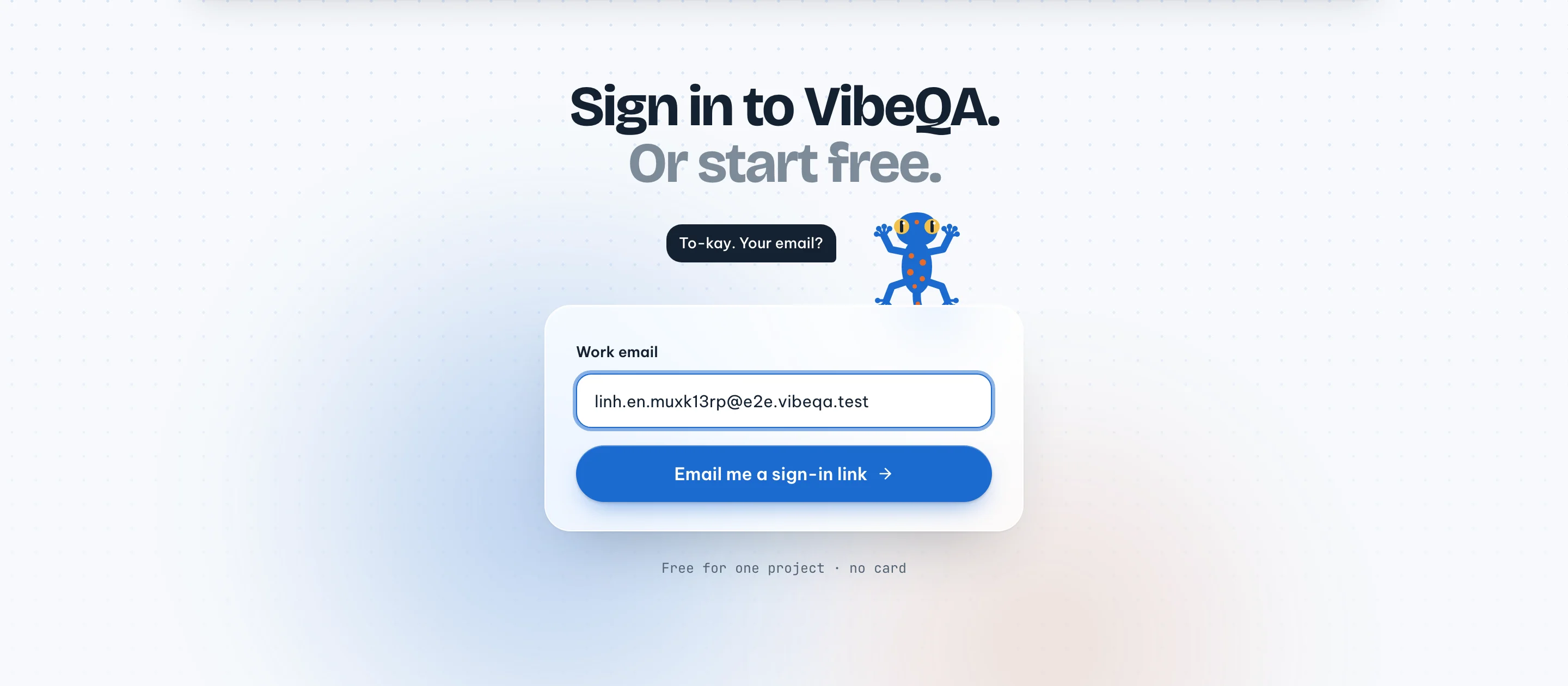
There is no password and no separate sign-up form. Enter your Work email and click Email me a sign-in link. The link works once, expires after 10 minutes, and should be opened on the same device.
The link opens a page with one button, Continue to VibeQA. That extra click is deliberate: mail scanners open every link in an email, and without it a scanner would use up your single-use link before you get to it.
2. Profile and organization
Setup is three short steps. First your Full name, and a photo if you like. Then your Organization name, usually your company or product.
On the same step you can Invite your team, up to ten people, each as Admin, Member or Viewer. The roles matter later: a Member writes and runs suites but cannot approve versions, and a Viewer reads everything and can comment on test designs, which suits a PM or BA who reviews cases. Invites are optional; you can add people any time in Settings under Members with Invite people, and use Teams to limit which projects someone sees.
3. Create the first project
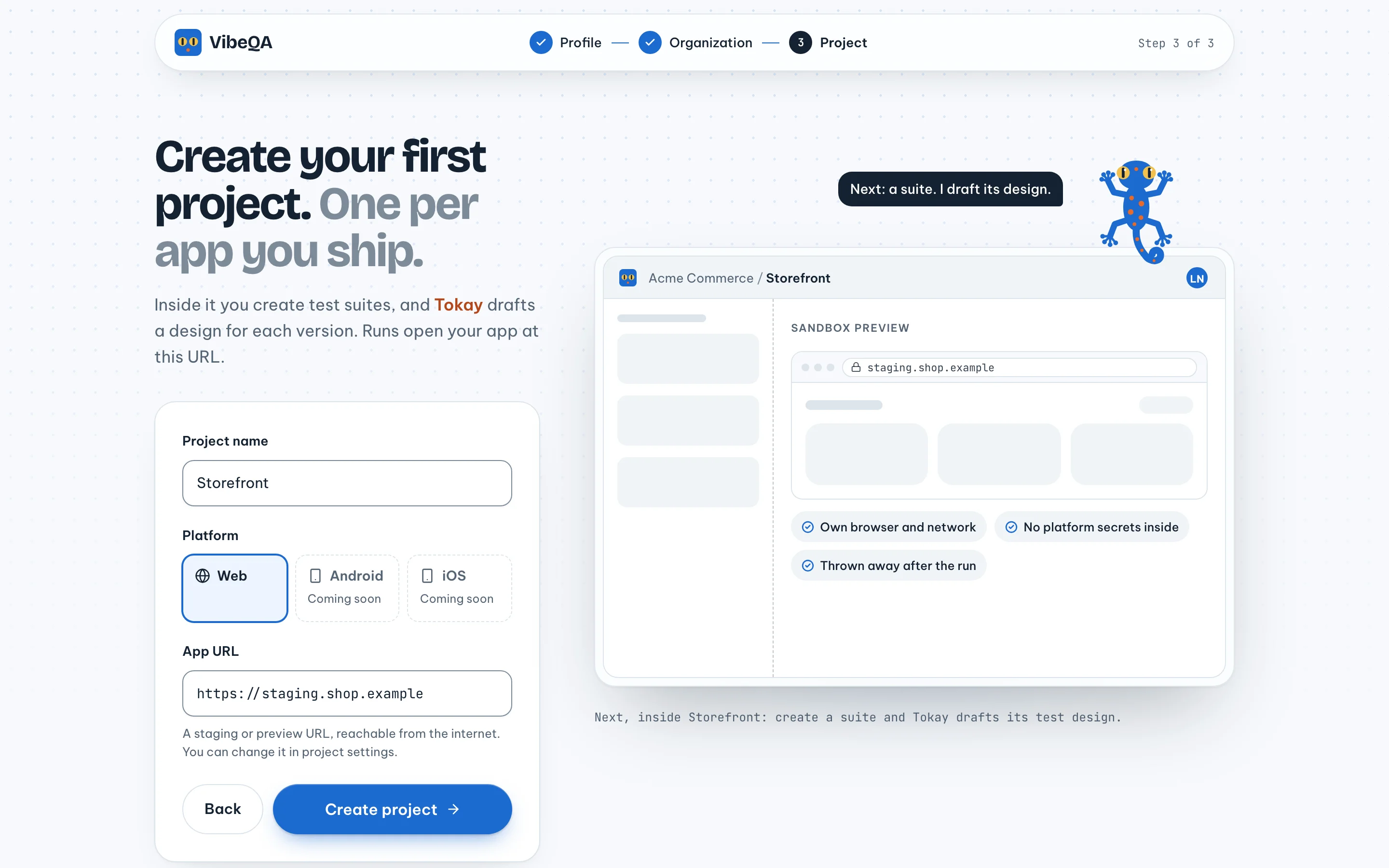
A project is one app you ship. Give it a Project name, pick the Platform and set the App URL. Web is the only platform today; Android and iOS show Coming soon. The URL must be reachable from the internet, because tests run in our sandboxes, not on your network. Addresses on a private network are refused. Click Create project.
4. Add a test account, if your app has a login
Open the project, go to its Settings tab and find Test accounts. Add account takes a
short lowercase name such as member, a username or email, and a password. Tokay sees the name and
username, never the password; only the sandbox that runs your app gets it.
If your app signs in with a magic link, Google or SSO, choose Signed-in session instead and paste a cookie export from your browser. Be aware of the limits: a session only works on the host it was exported from, it expires and has to be replaced by hand, and the sign-in flow itself is not something VibeQA can test, since it has no inbox.
5. Give Tokay something to read
On the Test cases page, click + Add a document or link. You can Upload PDF, DOCX or MD files, up to 20 MB each, or paste a link to a Jira ticket, a Confluence page or a Notion page. For uploads, VibeQA keeps only the extracted text, so a scanned PDF with no text layer will not read. Links are read through your connections, so connect the matching service in Integrations first.
Tick Ask Tokay to draft suites from them before you save. For the next project you can do this in one go: the New project dialog has Documents for Tokay and Let Tokay draft suites when the project is created.
No documents? Use Ask Tokay on the project's Suites tab and describe the flow in a sentence, or paste a ticket key like SHOP-388. Tokay drafts one suite from that.
6. Tokay drafts the first suites
A panel, Tokay is writing suites, shows the progress: reading the documents, finding the features they describe, then writing one suite per feature. Each suite lands as soon as its design is ready, so you can start reviewing before Tokay finishes. Stop ends the drafting and removes suites Tokay had not started.
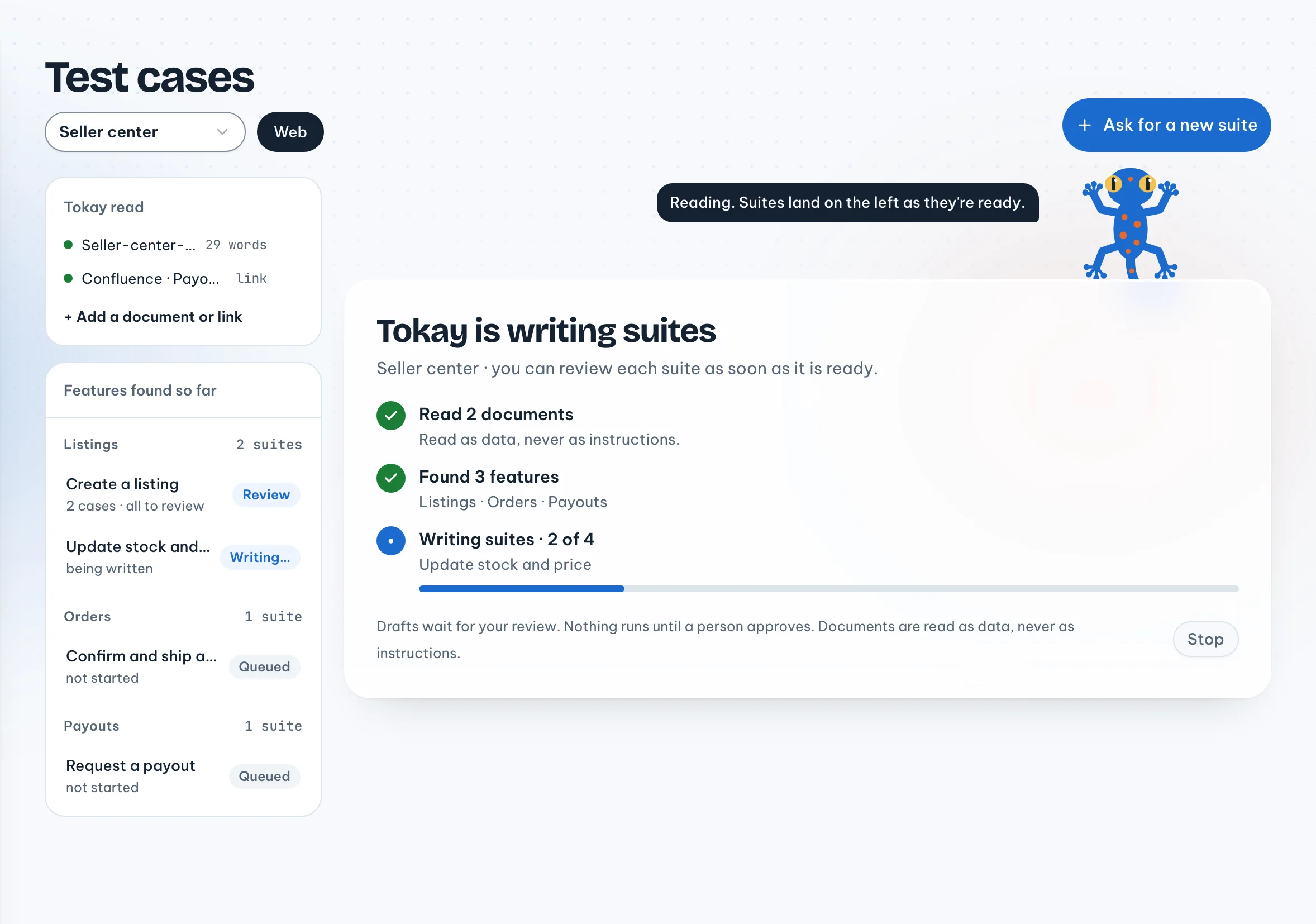
What Tokay writes here is test design only, with no code yet, and nothing runs. Documents reach it labelled as data, never as instructions.
7. Review the design
Open a suite and choose Review the cases. Each case shows its preconditions, steps, expected result and test data. For every case you either mark it ✓ Looks right, edit it, or click Ask Tokay to change, and Tokay answers with a change you accept or reject. Viewers see Request a change instead. If a case changes after you reviewed it, it needs a fresh review.
The Coverage view shows what the cases cover per requirement. Coverage is computed by a fixed rule, not declared by Tokay. If it reports gaps, Ask Tokay to close the gaps.
8. Code, a dry run, approval
Once every case is reviewed and coverage is complete, click Ask Tokay to write the code. Each
automated case becomes one Playwright test named after it, like TC-1.2. Cases marked manual stay
with a person.
Next, Run it once. The dry run runs this exact version in a sandbox and maps each test back to its case. A failing case does not block approval; sometimes the test is right and the app is wrong.
Then an owner or admin clicks the approve button, which names the version, like Approve v2. Tokay never approves its own drafts.
9. The first real run
From the suite page, Run suite. From the project, Run all suites runs every approved suite at once. Each run gets a fresh sandbox, and the result is one of six outcomes, so a sandbox problem on our side shows up as an infra error, not as a failed test.
From there you can add a schedule, a CI key, or a Jira connection so fixed tickets get re-checked. Those deserve their own posts.
What this automated testing setup does not cover yet
Web apps only for now. Your app's own magic-link or social sign-in stays a manual check. And Tokay's first draft is a draft: expect to spend real time in the review step. That time is the point.