5 min readĐọc bằng tiếng Việt
What happens when you press run
How VibeQA runs end-to-end tests: the queue, a fresh sandbox per run, test accounts whose passwords Tokay never sees, and where to look when a test fails.
It is the afternoon before a Storefront release. Every suite in the project has an approved version, and you want to run the end-to-end tests against staging to see whether checkout, sign-in and search still work. You open Runs and press "Run all suites". Here is what happens next.
Choosing which end-to-end tests to run
"Run all suites" asks a few things before anything is queued:
- Name. Optional, for example "Release check". It shows in the run history.
- Platforms. Today that means web. Android and iOS show as not available yet.
- Which suites. "All approved suites", or "Only what failed last time": the suites whose latest run ended as a failed test or a broken suite.
- Web environment. The project's default web URL, or a named environment such as staging that you set up in the project settings.
Each suite runs its approved version, one run per suite, grouped as one batch. A suite with no approved version, or no app URL for its platform, is skipped, and the batch says which and why. CI (with an API key) and schedules start the same kind of batch, and CI can pass any app URL instead of an environment. A single suite can also be run from its page, through the same queue.
The queue
Runs wait in one queue. When a sandbox slot frees up, VibeQA picks the next run that fits three limits: a cap on runs for the whole install, a limit per organization, and fair share. Among the runs that fit, an organization with fewer runs in progress goes first, then the oldest run, so one busy organization cannot hold every slot. Runs in a batch keep the order of the suites.
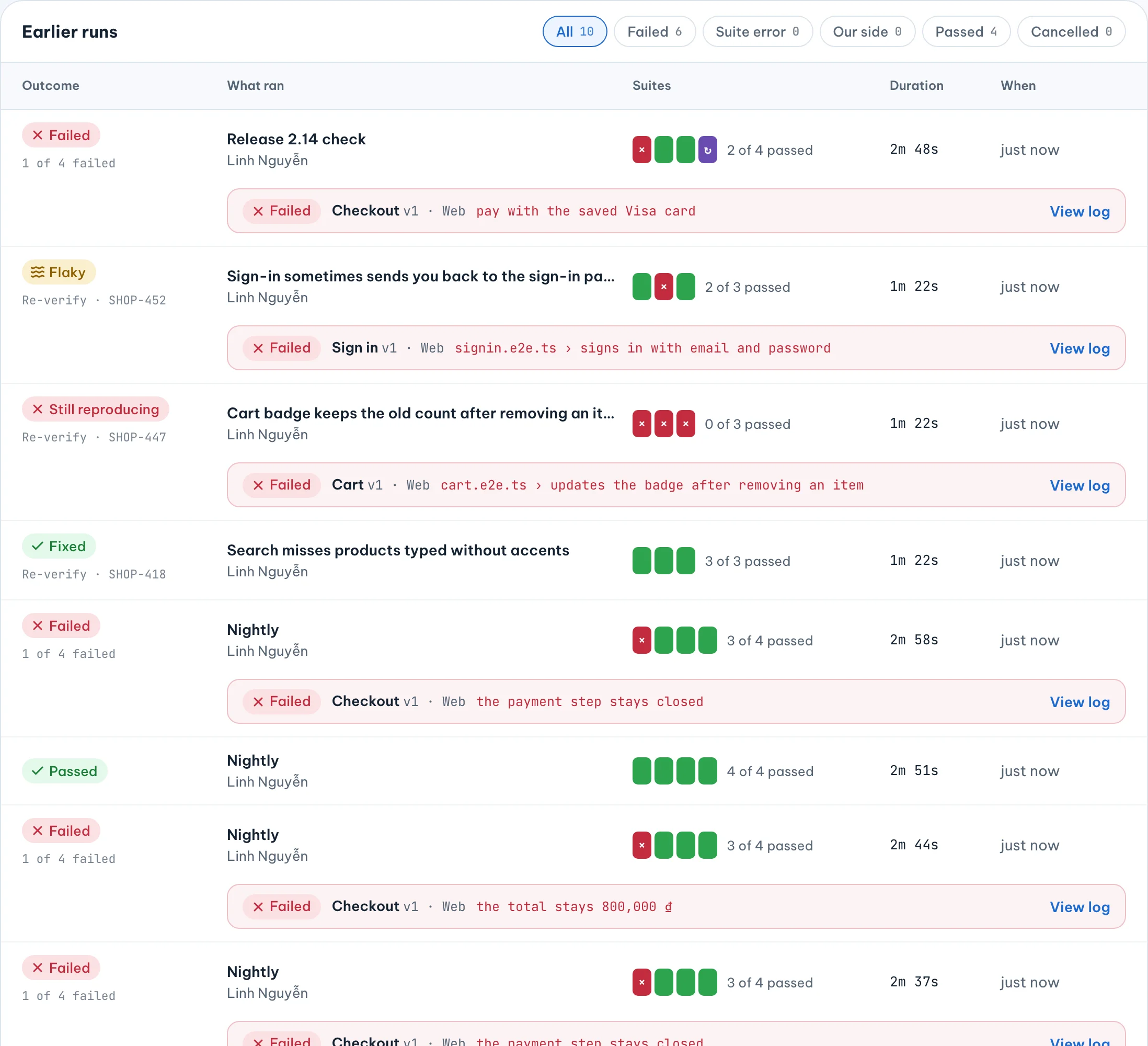
The run board shows where each run is ("Next in line", "#3 in line", running), how many suites your organization runs at a time, and a rough time-left estimate from how long each suite took recently. "Cancel waiting runs" drops what has not started.
A fresh sandbox for every run
When a run is claimed, the execution engine creates a new container and a new network for that run alone. Each run starts with a new browser and no cookies left over from the run before.
The container is locked down: it runs under gVisor, which puts its own kernel between the test and the host, as a normal user with a read-only filesystem, no Linux capabilities, and limits on memory, CPU and processes.
The network is narrow too. A run can reach the model gateway, which serves the AI steps in your
tests, and the public internet, and nothing else. Private address ranges and the cloud metadata
endpoint are blocked. So the app URL has to be reachable from the internet, like a staging or preview
deployment; VibeQA refuses localhost and private addresses as soon as you enter them.
The sandbox holds no platform secrets. Its only credential is a token for this run that the model gateway accepts; the gateway swaps it for the real model provider key, which never enters the sandbox.
Test accounts and secrets
Most apps need a login. In the project settings, under Test accounts, you add accounts with a name
like member or admin, a username and a password. The password is encrypted when it is saved and
only ever reaches sandboxes that run this project.
Tokay sees the account name and the username, never the password. When an AI step or Tokay has to
sign in, it asks for the account by name with type_secret, and the value is typed inside the
sandbox. Code uses credentials.user('member'). Reports hide the value.
Some tests also need a value that is not an account, like an API token to create test data through
your app's API before a checkout test. Those go under Secrets. Only runs whose code calls
secret('name') receive them, reports hide them, and those runs record no trace.
If your app signs in with a magic link, Google or SSO, a test account can instead hold an exported signed-in session. It works only on the host it was exported from, and you replace it by hand when it expires. Test accounts and secrets belong to the project, not to an environment.
Watching a run
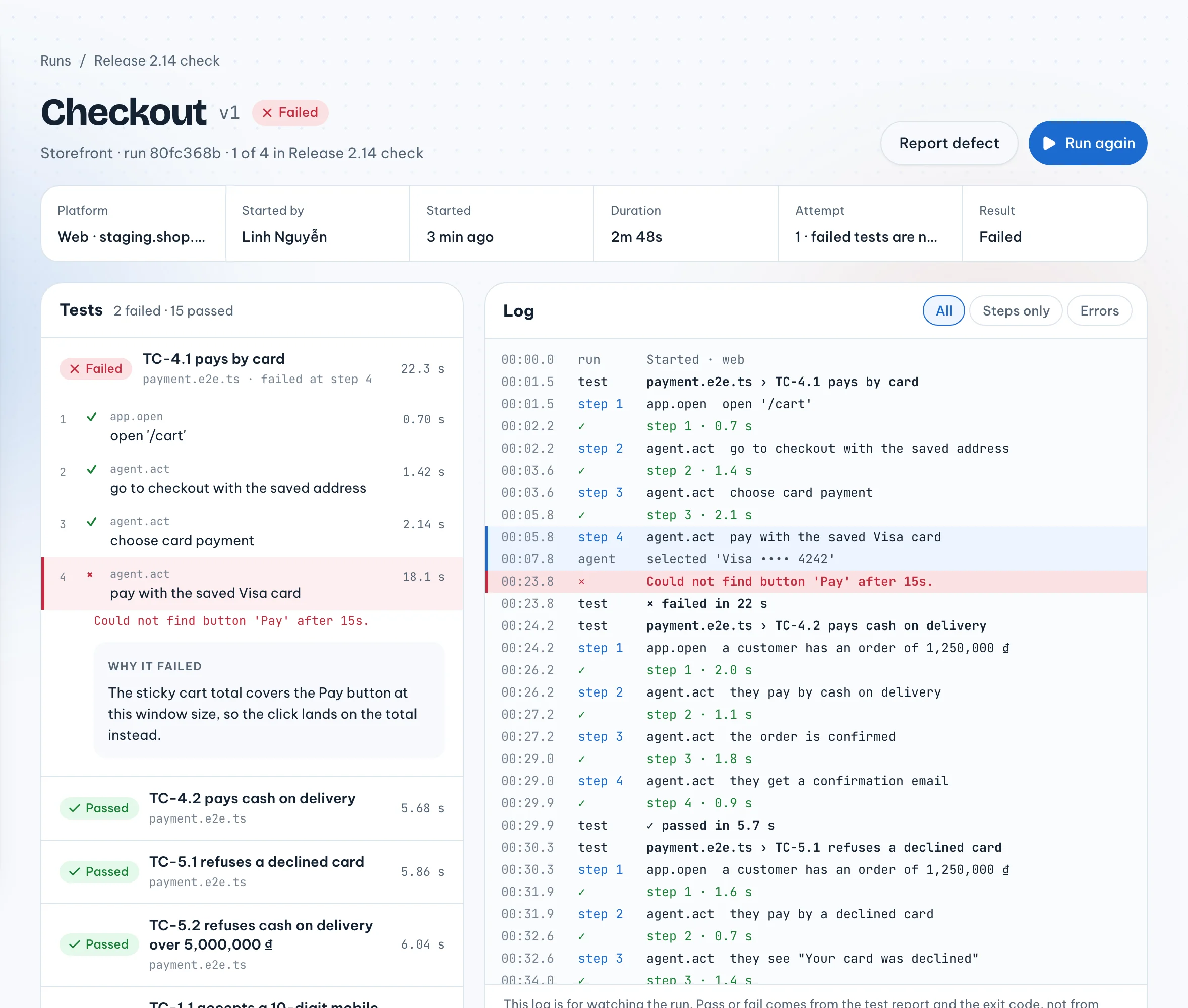
Each run has its own page, and it updates while the run goes. It lists the tests, each with its steps as they pass or fail. Beside them is the log, which you can narrow to steps only or to errors, and follow as new lines arrive.
The log is for watching. Pass or fail comes from the test report and the runner's exit code, never from these lines or from anything a model says about them.
When a test fails
Start on the run board. For a failed run in the batch, it shows the first failing test and the step it failed at, so you can often tell which suite needs attention without opening anything.
On the run page, the first failing test is already open at the step that failed. Under that step are the error, a short "Why it failed" note when the runner gives one, and a screenshot if there is one. Clicking a step shows its lines in the log. When the run ends, its screenshots, video, trace and test report appear under "Files from this run", kept for seven days.
Not every run that stops is about your app. A sandbox that ran out of memory is our problem; VibeQA retries it once and never counts it as a failed test. The six outcomes a run can end with are in A red run should mean your app is broken.
If it is your app, "Report defect" files a Jira ticket from the run, or links one that already exists, and keeps the suite version as the repro.
What it does not do yet
Runs are web only for now. Tokay can look around your app only with password accounts, not with a signed-in session. And the time estimate on the board is exactly that: an estimate.